
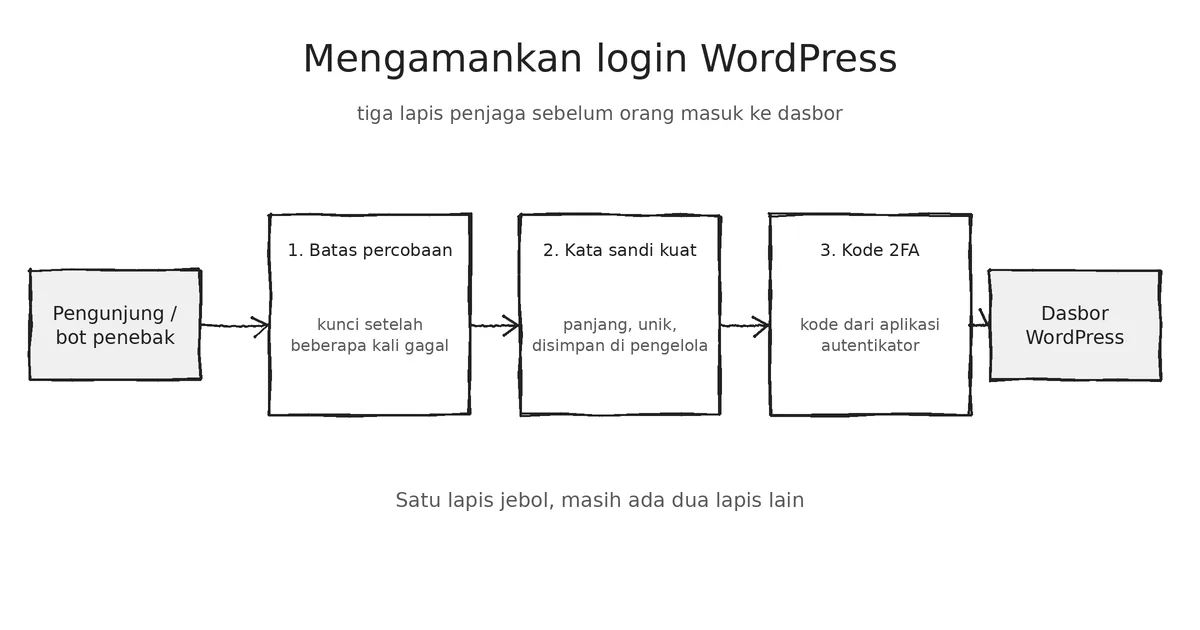

- Use long, unique passwords and store them in a password manager so they cannot be easily guessed by malicious bots.
- Enable two-factor authentication (2FA) using an authenticator app on your phone to secure access to critical accounts.
- Limit login attempts to lock out IP addresses after multiple failures to prevent brute-force attacks.
The login page is your site’s front door, and password-guessing bots knock on it every day. The good news is that three simple steps already eliminate most of the risk: a strong password, two-factor authentication (2FA), and login attempt limits.

Layer 1: A genuinely strong password
Length matters more than complex punctuation. A random phrase that is easy for you to remember—such as four to five unrelated words—is much harder to guess than P@ssw0rd1.
- Use a different password for every site. If one site is breached, your other sites remain safe.
- Store passwords in a password manager so you do not have to memorize dozens of them.
- Do not use the username
admin. Create a new administrator account with a different name, then delete the old account and assign its content to the new one.
Layer 2: Two-factor authentication (2FA)
With 2FA, even a compromised password is not enough to log in. After entering the correct password, WordPress requires a six-digit code that changes roughly every 30 seconds from an authenticator app on your phone.
Read also Speeding Up WordPress Without the Hassle: 7 Most Impactful Steps
- Install a well-maintained 2FA plugin, such as Two-Factor or WP 2FA.
- Choose the authenticator app method (which is more secure than codes sent via SMS or email).
- Scan the QR code with your authenticator app, then enter the code to confirm it works.
- Store your backup codes in a safe place. Without them, losing your phone could mean getting locked out of your own site.
Make 2FA mandatory at least for all Administrator and Editor accounts.
Layer 3: Limit login attempts
Bots can try thousands of password combinations. A login attempt limiter locks out an IP address after a few failures, rendering brute-force guesses impractical. A reasonable setup: lock out for 15 minutes after 5 failed attempts, and increase the lockout duration if attempts continue repeatedly.
If you use SmartRank SEO, this feature is already included under SmartRank SEO, Settings: login attempt limiter, XML-RPC settings, standardized login error messages to prevent username leaks, and custom login URL options. One plugin is enough for this part; do not install two login limiters simultaneously as they can conflict with each other.
Additional simple and effective habits
- Regularly update your core, themes, and plugins, as many hacks exploit old vulnerabilities.
- Delete unused accounts and give each person only the role they need (refer to the article on users and capabilities).
- Regularly back up your site so even the worst attacks can be recovered.
- A custom login URL can be used to reduce bot noise, but treat it as a bonus, not a replacement for a strong password and 2FA.
If you get locked out
Don’t panic. Deactivate the security plugin by renaming its folder in wp-content/plugins/ via File Manager or FTP, then log back in and fix your settings.
Read also Proper WordPress Backup: The 3-2-1 Rule for Beginners
Checklist
- No user named
admin. - All passwords are long and unique.
- 2FA is enabled for administrators and editors.
- Login attempt limiter is active.
- Automatic backups are running.
Frequently Asked Questions
Why is securing WordPress login important for my website?
The login page acts as your site’s main entrance where automated bots constantly attempt password-guessing attacks. Implementing fundamental security measures like strong passwords, two-factor authentication, and login attempt limits effectively eliminates most risks of unauthorized access.
How can I create a truly secure password for WordPress?
Prioritize length over complex punctuation by using a memorable random phrase of four to five unrelated words. Avoid using the default admin username, use unique passwords for every site, and store them securely in a reliable password manager.
What is two-factor authentication (2FA) and how does it work?
Two-factor authentication requires a temporary six-digit code from an authenticator app on your phone after you enter your password. This ensures that even if a password is compromised, attackers still cannot log into your account.
How do I stop brute-force attacks on my WordPress login page?
You can stop brute-force guesses by installing a login attempt limiter that blocks an IP address after several failed attempts. A standard configuration locks out the IP for fifteen minutes following five unsuccessful logins.
What should I do if I get locked out of my WordPress site?
If you get locked out, remain calm and use your hosting file manager or FTP to access the wp-content/plugins directory. Temporarily rename the security plugin folder to deactivate it, log back into your site, and adjust your settings.

Hi everyone, I'm Ari, a Blogger from Indonesia. Always learning new things, trying them out and putting them into practice right away. Everything is difficult without practice, bro. You always have to be creative and innovative.